
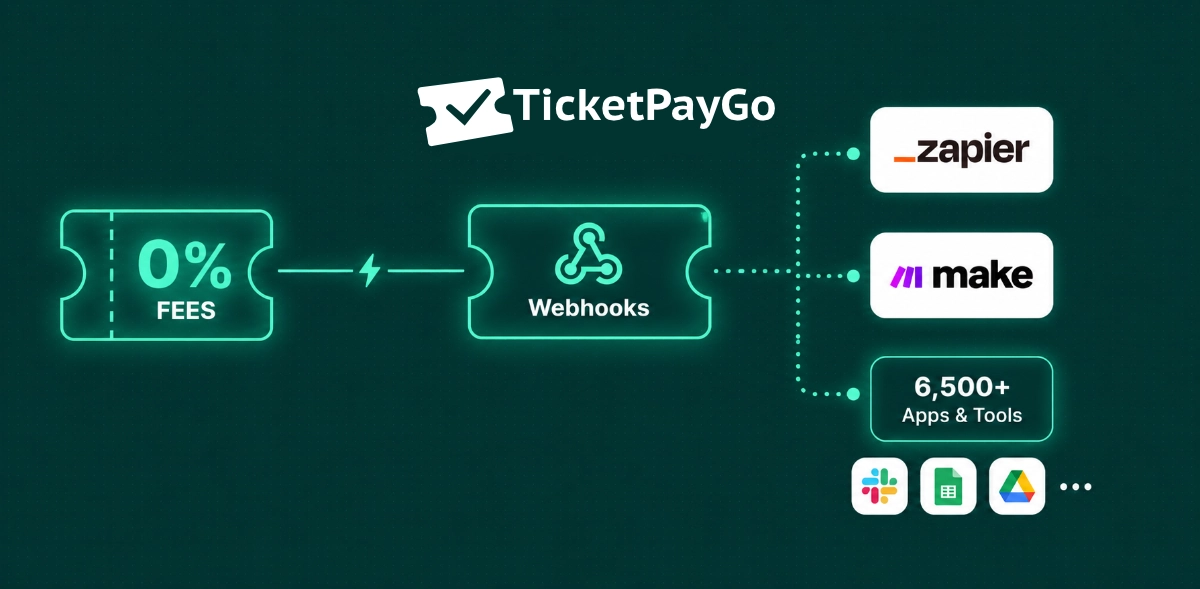
Connect TicketPayGo to Zapier and Make.com
Someone buys a ticket. A row appears in your Google Sheet, your Slack channel gets a message, and your CRM logs the contact, all without you doing anything. That is what connecting TicketPayGo to Zapier or Make.com looks like in practice.
The free Webhooks add-on makes this possible. It comes included with every paid TicketPayGo plan and takes about five minutes to set up.
What It Actually Does
Every time something happens in TicketPayGo (a ticket sold, a refund processed, someone checked in at the door) the add-on sends that information to the tools you already use. You choose which tools receive which updates. If a delivery fails for any reason, it retries automatically so nothing gets lost.
No code required on your end. You point TicketPayGo at a Zapier or Make.com connection, and the data flows from there.
What You Can Automate
There are six moments TicketPayGo can send information to your other tools:
When a ticket is sold: You get the buyer's name, email, ticket type, and order total. This is the trigger most organizers use for everything: adding attendees to a spreadsheet, updating a CRM, sending a welcome email through your own tool.
When an order is refunded: Useful for keeping your team informed and spotting patterns early. A single refund is normal; five in one afternoon for the same event is worth knowing about.
When you publish a new event: Automatically notify your team or draft a social post the moment an event goes live.
When event details change: If you update a date, location, or price, you can automatically trigger a follow-up email to existing ticket holders through your email tool.
When someone checks in at the door: Every QR scan sends a notification. Build a live counter in Google Sheets or give remote staff a real-time door count without handing out scanner access.
When someone joins or moves off a waitlist: Requires the TicketPayGo Waitlist add-on. Useful for automating follow-up messages when spots open up.
Automations Worth Setting Up First
Live attendee list in Google Sheets Every ticket sale adds a row with the buyer's name, email, ticket type, and order number. Your whole team can see who is coming without logging into WordPress.
Slack notification on every sale A quick message to your events channel every time a ticket sells. Simple, but during a launch it keeps the whole team in the loop without anyone refreshing the dashboard.
New buyers straight into your CRM Each sale creates or updates a contact in HubSpot, Pipedrive, or ActiveCampaign. Your marketing list stays current automatically.
Refund alert to the team A Slack message or email the moment a refund goes through. Fast enough to catch anything unusual before it becomes a problem.
How to Get Connected
The Webhooks add-on is in your TicketPayGo welcome email as a separate download. Install it like any other WordPress plugin, then open TicketPayGo > Webhooks in your dashboard.
- Click Add Endpoint and paste in your Zapier or Make.com connection URL
- Choose which events you want sent to that connection
- Save and copy the secret key that appears, you will need it on the Zapier or Make.com side
- Hit Send Test to make sure everything is connected
In Zapier, start a new Zap and choose "Webhooks by Zapier" as the trigger, then pick "Catch Hook." In Make.com, add a Webhooks module at the start of your scenario and choose "Custom webhook." Both platforms walk you through the rest and figure out the data structure automatically the first time a real event comes through.
Under the Log tab in your TicketPayGo dashboard you can see every delivery attempt and whether it succeeded, so there is no guessing if something is not working.
Common Questions
Is this add-on really free? Yes, it comes with every paid TicketPayGo subscription.
Can I connect to more than one tool? Yes. Add as many connections as you need and choose different events for each one.
Do I need a developer? No. Zapier and Make.com are built for this. If you can set up a Zap or a Make scenario, you can set this up.
What to Do Next
Download the Webhooks add-on from your welcome email and connect your first tool today. Not sure how TicketPayGo compares to other WordPress ticketing plugins when it comes to automation? That comparison covers it. Just getting started? The step-by-step event setup guide gets your first event live in under 30 minutes.